

Most TVs ship with terrible picture settings enabled by default. They’re too bright, colors are oversaturated, and motion processing makes movies look like soap operas. These settings exist to grab attention in stores, not to deliver accurate picture quality at home.
Fortunately, give quick adjustments fix the most common problems. Here’s what to change first for immediately better picture quality.
Article continues below
1. Change to Movie or Filmmaker mode
Nearly all Samsung TVs ship with Eco Mode enabled by default. This feature limits power consumption by reducing the TV’s brightness and contrast levels. While saving energy sounds beneficial, the actual savings are typically minimal.
To disable Eco Mode, press the gear button on your Samsung remote to access settings. Navigate to All Settings, General and Privacy, Power and Energy Saving, Energy Saving Solution. Then toggle Energy Saving Solution off. In all likelihood, you’ll immediately notice the screen looks brighter and colors appear more vibrant.
2. Turn off motion smoothing

Motion smoothing goes by different names depending on your TV brand — TruMotion (LG), MotionFlow (Sony), Motion Clarity (Samsung), —but it does the same annoying thing: creates fake frames between real ones to make motion appear smoother.
This makes movies look like cheap TV shows or soap operas. It’s called the “soap opera effect” for exactly this reason. Filmmakers hate it, and most viewers find it distracting once they notice it. The artificial smoothness removes the cinematic quality that makes movies feel like movies.
Go to Picture Settings and look for anything with “motion,” “smoothing,” or “clarity” in the name. Then turn it completely off for movies and TV shows. For sports, you might prefer it on Low instead of off.
3. Lower your brightness

Default brightness is often set ridiculously high to compete with bright store lighting. At home, this causes eye strain, washes out dark scenes, and makes your TV consume more power than necessary.
Find Brightness or Backlight in Picture Settings, and lower it gradually while watching content until the picture looks comfortable without being dim. You want dark scenes to have visible detail without the whole screen glowing like a lamp.
Test with a movie that has dark scenes. If you can see details in shadows and the blacks look actually black instead of gray, your brightness is correct.
4. Disable dynamic contrast/adaptive brightness
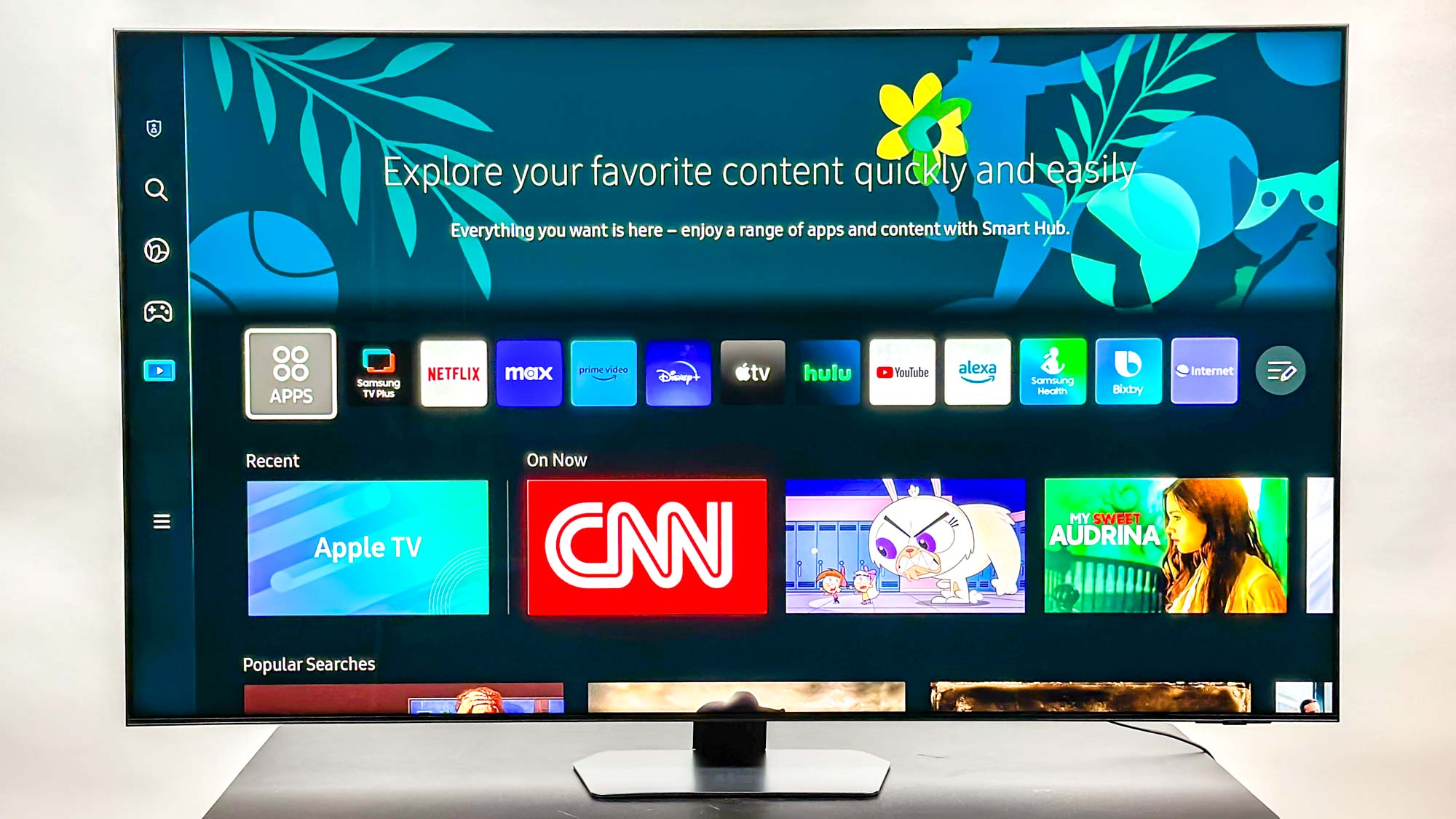
Dynamic contrast (also called adaptive brightness or auto-brightness) constantly adjusts your screen’s brightness based on what’s displayed. Dark scenes dim the whole screen, bright scenes crank it up. This creates distracting brightness shifts during viewing that pull you out of the content.
Turn off anything labeled Dynamic Contrast, Adaptive Brightness, Eco Sensor, or Auto Brightness in Picture Settings. These features might save minimal energy but they ruin picture consistency. Manual brightness settings look far better.
After disabling these, set your brightness once based on your room’s typical lighting and leave it there. The consistent brightness makes viewing more comfortable and lets you see content as intended without the TV second-guessing every scene.
5. Enable enhanced HDMI signal for gaming
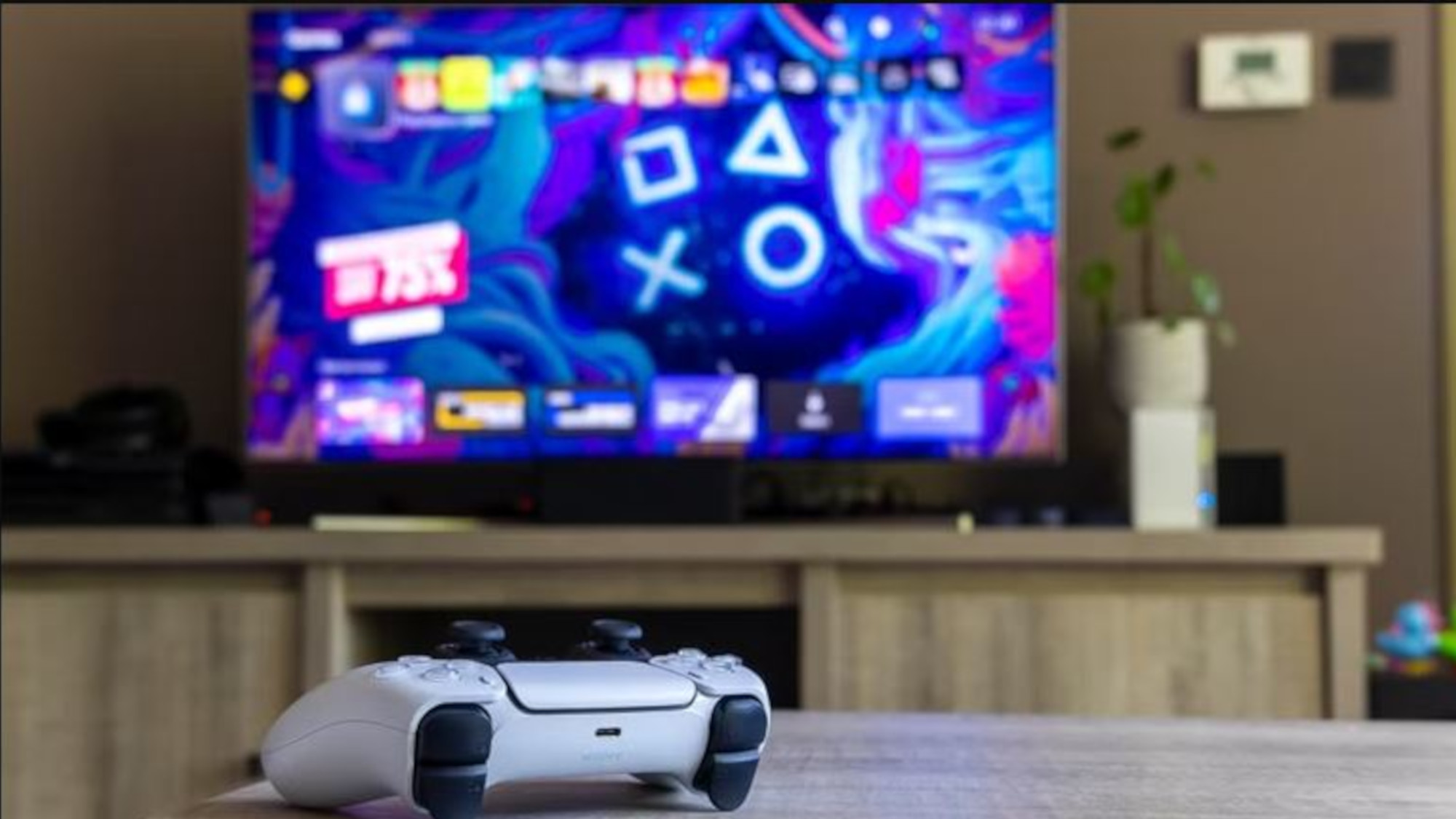
If you have a PS5, Xbox Series X, or gaming PC connected to your TV, enhanced HDMI mode is essential. Without it, you’re not getting HDR, 120Hz refresh rates, or full color depth your devices support. Your expensive console is outputting limited-quality video because your TV’s HDMI port is in basic compatibility mode.
The setting has different names by brand: Input Signal Plus (Samsung), HDMI Deep Color (LG), Enhanced Format (Sony), or HDMI Signal Format (Hisense). Find it in Settings under HDMI or External Device settings.
Enable enhanced mode for the specific HDMI port your console or PC uses. After enabling it, restart your gaming device. The difference in game visuals is immediately obvious.

Follow Tom’s Guide on Google News and add us as a preferred source to get our up-to-date news, analysis, and reviews in your feeds. Make sure to click the Follow button!
More from Tom’s Guide
First Appeared on
Source link






Leave feedback about this