

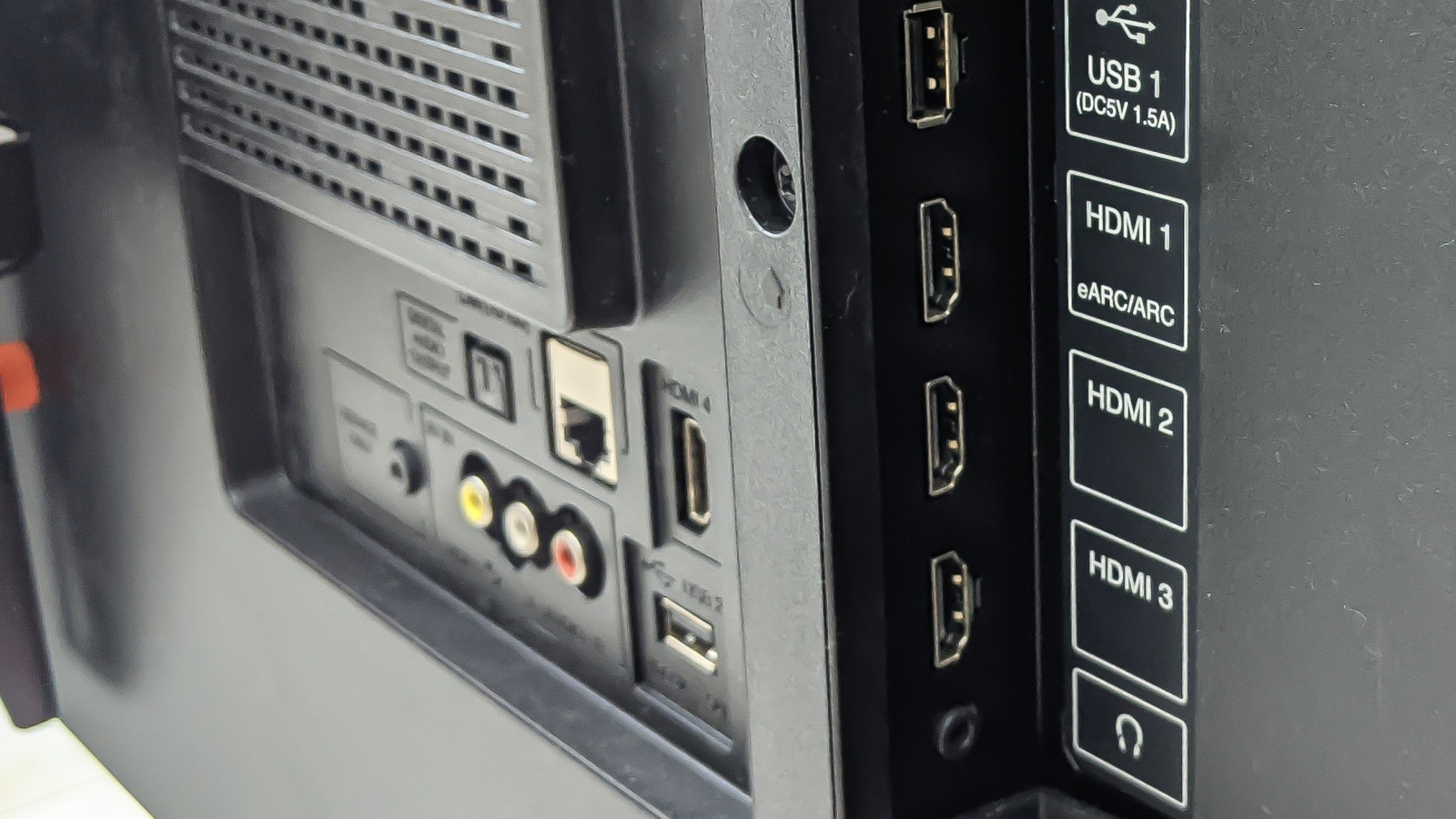
If you bought a mid-range or premium 4K TV in the last few years, there’s a good chance your HDMI ports can do far more than just display a picture. Modern TVs are packed with hidden features designed to improve gaming, sports, and movie watching, but many of them are tucked away in settings menus or only work when the right HDMI options are enabled. And if you don’t know about them, that means there’s functionality that you’ve already paid for that you’re not benefiting from. Your HDMI ports can not only increase your TV’s image quality, but also provide smoother motion and cinema-quality sound.
HDMI cables play a role, too. If you’ve enabled everything and you’re still not getting the performance you want, it’s worth checking your cables. Most TVs don’t come with cables in the box, and old ones can limit fancier features. If your cable is older than your television, look at upgrading it to one labeled “Premium High Speed” for standard 4K setups, or “Ultra High Speed” if you’re using newer features like 4K at 120Hz, advanced HDR, or next-gen gaming consoles.
When putting together this list of HDMI features, we’ve focused on TVs, but many of them also apply to computers, game consoles, and streaming devices. HDMI ports on PCs, for example, can deliver higher refresh rates, HDR, and surround sound in the same way as your television, as long as the port, cable, and display all support the same features.
Your HDMI Port Might Have a Hidden Performance Mode
When you watch content from devices like game consoles, streaming boxes, and Blu-ray players plugged into your TV, they’re coming through an HDMI port, and the quality of the picture will depend on what port you use and how its settings are configured. On many TVs, you’ll need to adjust HDMI settings to ensure that you are getting the best possible picture. Most TV brands have some kind of enhanced option, but these are often disabled by default. When turned on, it unlocks the full capabilities of the HDMI port, and the TV can accept higher-quality signals from HDMI-connected devices. The reason that enhanced settings are optional is to maintain compatibility with older devices, but as long as your source supports it, it’s worth enabling.
Different TV brands refer to enhanced settings by different names. Sony TVs have several enhanced format options, such as Enhanced Format (Dolby Vision) and Enhanced Format (8K), which you can enable by going to the HDMI signal format option in Settings. On LG televisions, you’ll need to go to the general menu and select HDMI Ultra HD Deep Color from the list. To change the settings on a Hisense TV, go to Channels & Inputs in the settings menu, and choose Enhanced Format as your preferred HDMI Format. If you have a different brand of television, have a look at the menu options for something similar or consult your user manual.
Your TV Can Automatically Switch to Game Mode
If you play games on a console or gaming PC, you’ve probably heard about “Game Mode.” This setting reduces input lag, which is the delay between pressing a button and seeing the action on screen. What many people don’t know is that newer HDMI ports can switch this mode on and off automatically.
This feature is known as Auto Low Latency Mode (ALLM) and was introduced with version 2.1 of the HDMI specs. When a compatible console like a PlayStation or Xbox is connected, the TV detects the signal and automatically switches into its low-latency picture mode. When you stop gaming and switch back to a movie or streaming app, the TV returns to its normal picture settings on its own.
For gamers, this makes a noticeable difference. Controls feel more responsive, and fast-paced games become easier to play, which is why you should always plug your game console into your TV’s HDMI 2.1 port. On many modern TVs, ALLM works straight out of the box when you first plug in your game console. If you do need to manually enable it the first time, look for something like “Instant Game Response” or “Game Optimizer” in the settings.
Your HDMI Port Can Make Sports and Games Look Smoother
Another hidden advantage of modern HDMI ports is the ability to handle higher refresh rates and dynamic frame syncing. These features are part of the HDMI 2.1 standard and include things like 4K at 120Hz and Variable Refresh Rate (VRR). A higher refresh rate means the TV can show more frames every second. This results in smoother motion, which is especially noticeable in fast-moving scenes. If you’re watching sports, that might mean clearer action during a game or less blur when the camera pans across the field. It’s especially handy for gaming as it makes movement feel more fluid and responsive.
VRR takes this a step further by synchronizing the TV’s refresh rate with the output of the console or PC. This reduces screen tearing and stuttering, creating a more consistent and comfortable viewing experience. Instead of the image breaking apart during fast motion, everything stays smooth and stable. Many modern consoles and gaming PCs already support these features, but they only work if the TV’s HDMI port can handle them. The HDMI port you use matters, and this is another reason to use the HDMI 2.1 port for your gaming console.
One HDMI Cable Can Deliver Cinema-Quality Sound
Many people think of HDMI as a way to send video to a TV, but some HDMI ports can also send high-quality audio back out. This feature is called eARC, which stands for enhanced Audio Return Channel. It allows your TV to pass full-quality sound from built-in apps or connected devices to a soundbar or AV receiver using a single HDMI cable.
Without eARC, you might be limited to compressed audio formats or need extra cables to get the best sound. Earlier versions of this feature, called ARC, were restricted to more basic surround sound. eARC removes those limits, allowing full-quality formats like Dolby TrueHD to pass through the cable without being compressed. Many TVs and soundbars already support eARC, but people often don’t realize they need to always plug these devices into their TV’s HDMI eARC port. If your soundbar is connected to the wrong input, you won’t get the full audio experience your equipment is capable of.
First Appeared on
Source link






Leave feedback about this